How to Register Your Team for a Division
Step-by-step guide to registering your team for a competitive division in an event.
Before You Begin
Make sure you have:
- A TourneyFlow account (sign up here)
- A team you're a captain of, with at least one member (how to create a team)
Note
Only team captains can register a team for a division. If you're not a captain, ask one to either register the team or promote you to captain first.
Step 1: Find an Event
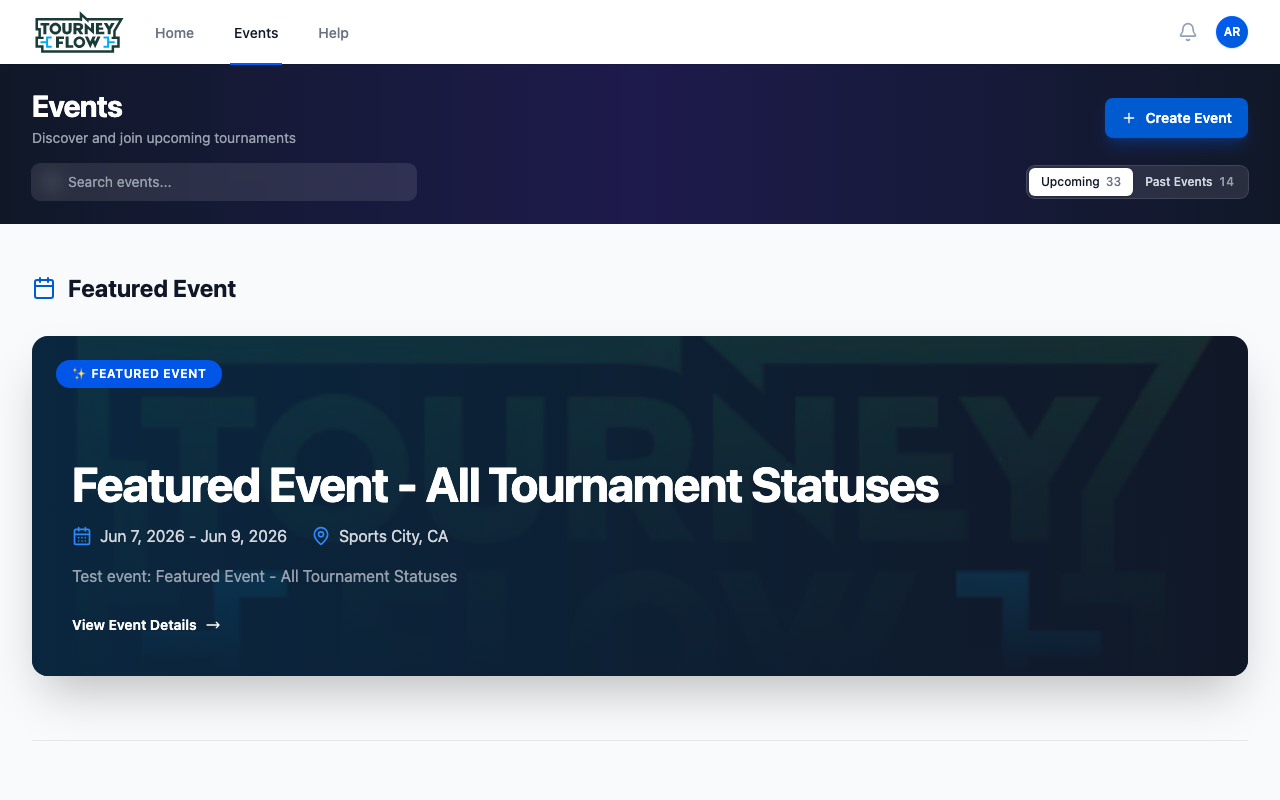
Click Events in the top navigation. Browse the Upcoming tab or use the search box to find the event you want to join.
Step 2: Open the Event
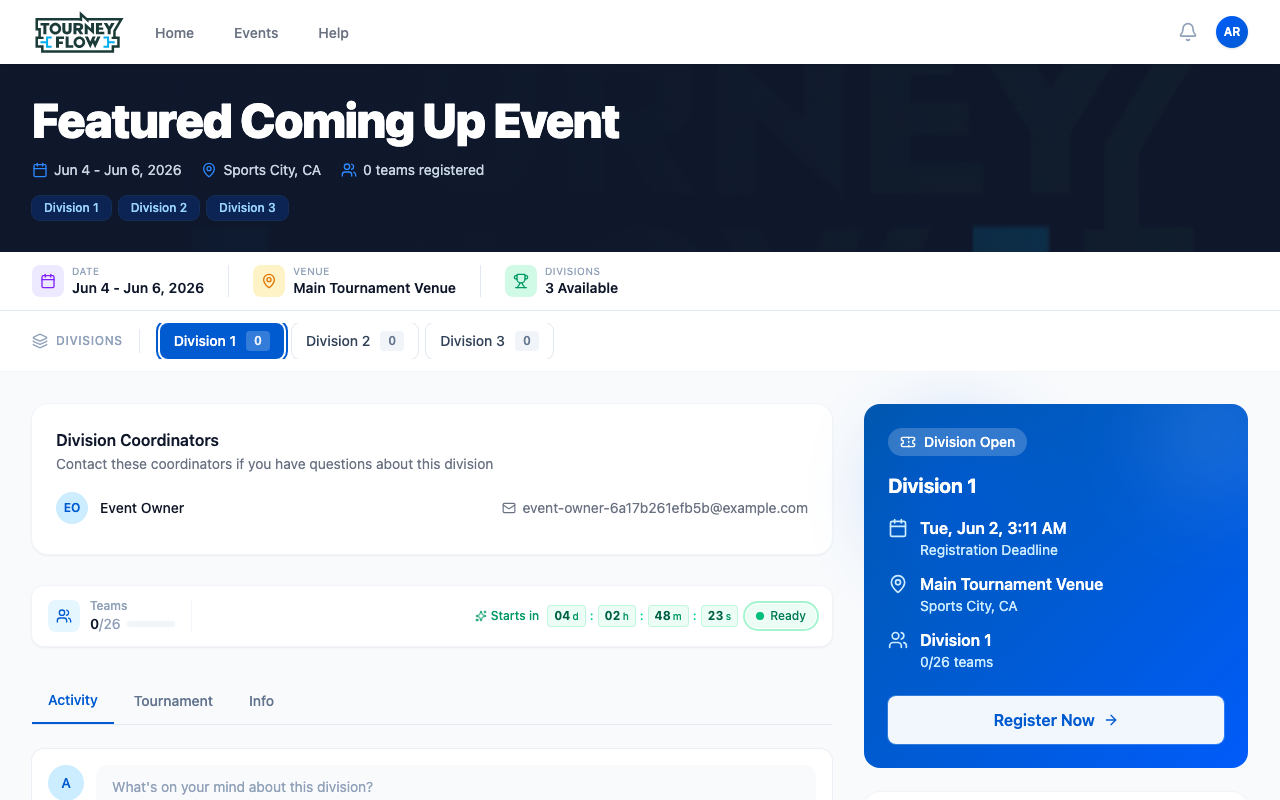
Click the event to open its details page. You'll see:
- Dates, location, and divisions at the top
- Division tabs so you can switch between divisions in the event
- A Division Open badge and a Register Now button on the right when registration is currently open
- Division Coordinators you can email with questions
Note
If the right panel shows Registration Closed instead, that division is past its deadline or has filled all its team slots. Try a different division tab or contact a coordinator.
Step 3: Click Register
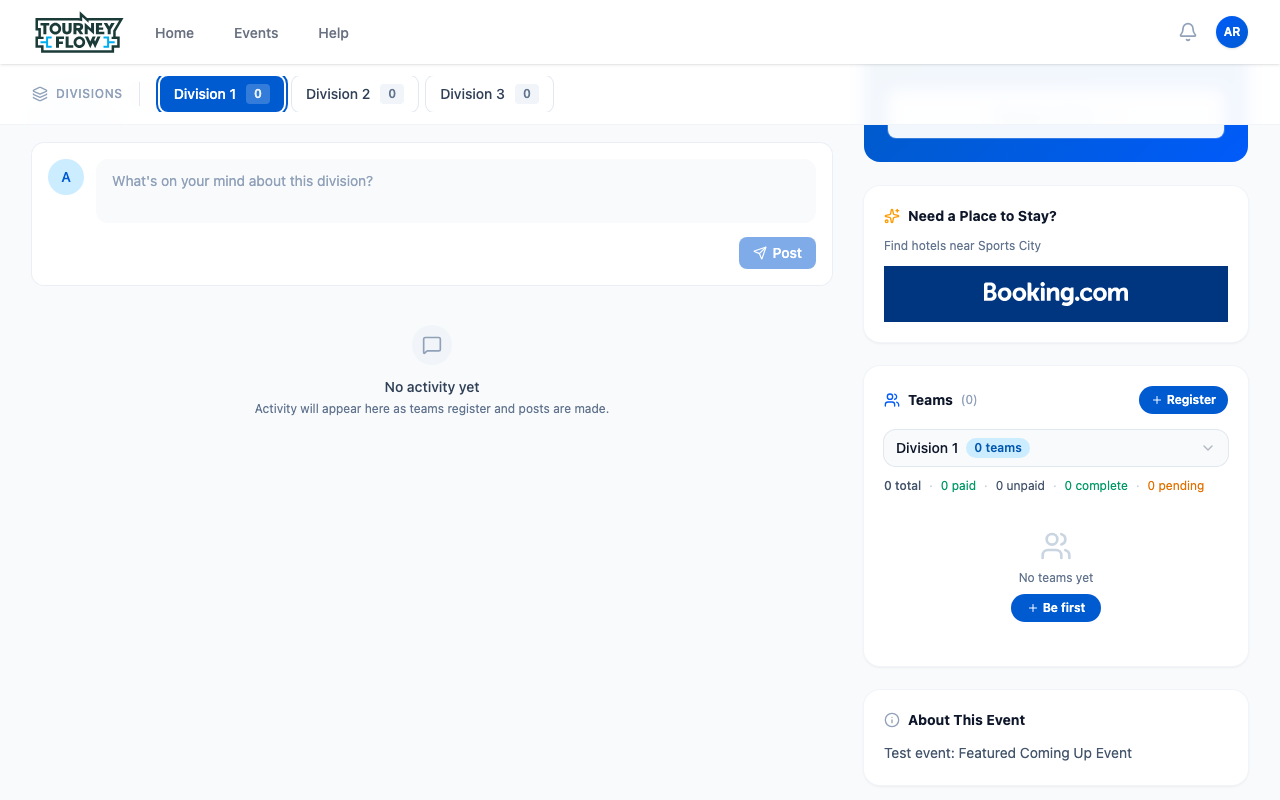
Scroll down to the Teams section. You'll see the team count for this division (e.g. "0/26 teams") and a + Register button. Either button — the right panel's Register Now or the Teams panel's + Register — opens the registration wizard for the currently selected division.
Step 4: Build Your Team — Select Your Team
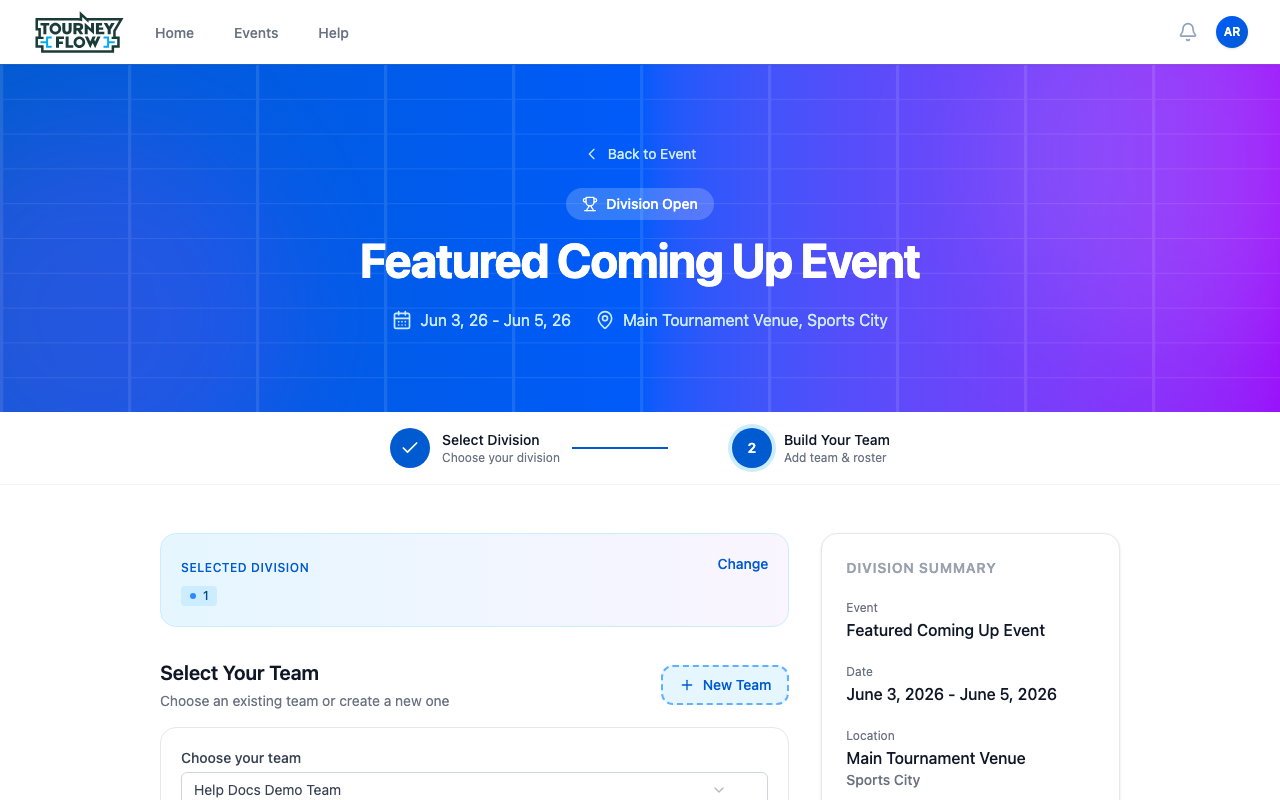
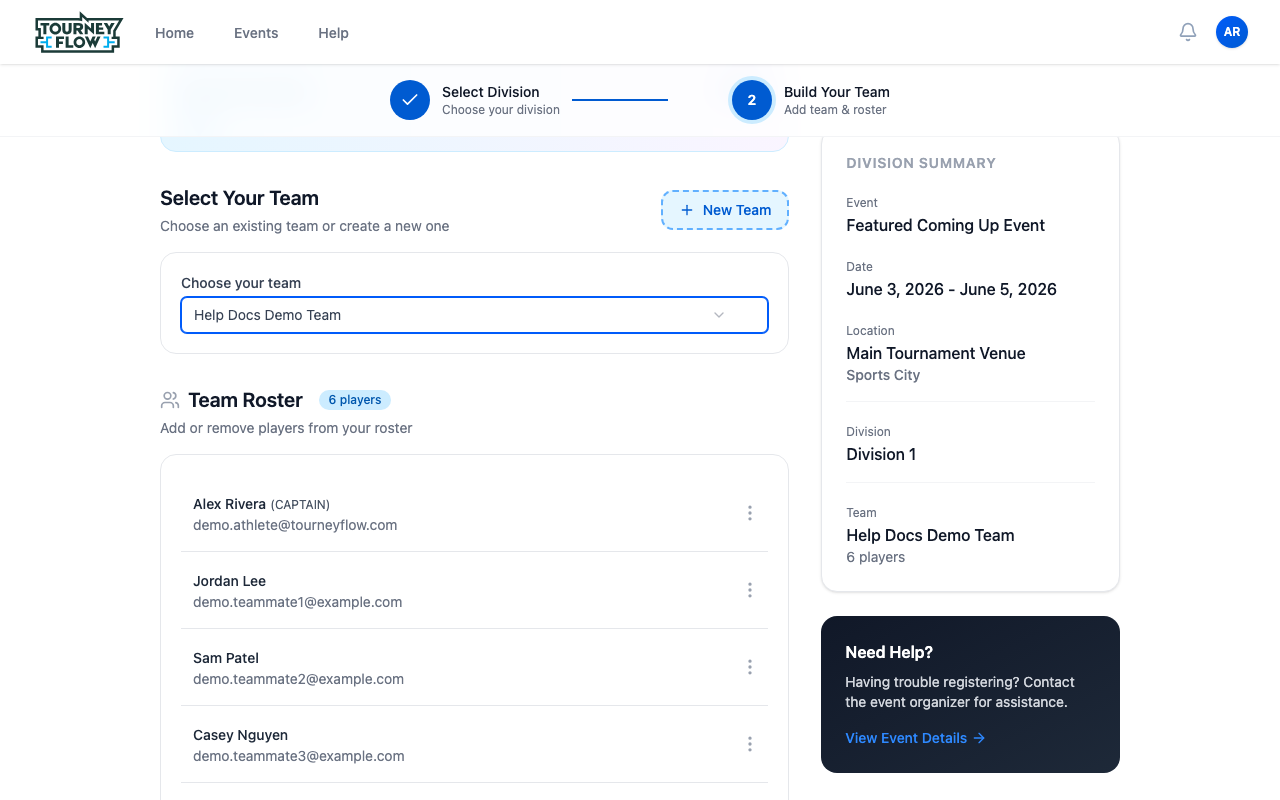
The registration wizard opens at Step 2: Build Your Team (division is already chosen because you clicked Register from that division). Pick the team you want to register from the Choose your team dropdown, or click + New Team to create one on the fly.
Step 5: Choose Your Division Roster
As soon as you pick a team, the Team Roster section appears with all your team members. Each player can be added or removed for this specific registration using the ⋮ menu on their row.
The number of players you can add is bounded by the division's roster limit, which is shown on the Division Summary on the right.
Tip
Need to add a player who isn't on your team yet? Click + New Teammate at the bottom of the roster. They'll be added to your team and the division roster at the same time.
Step 6: Review and Register
Scroll to the bottom of the page to review your registration. The Division Summary panel on the right recaps the event, date, location, division, and team. When everything looks correct, click the blue Register button.
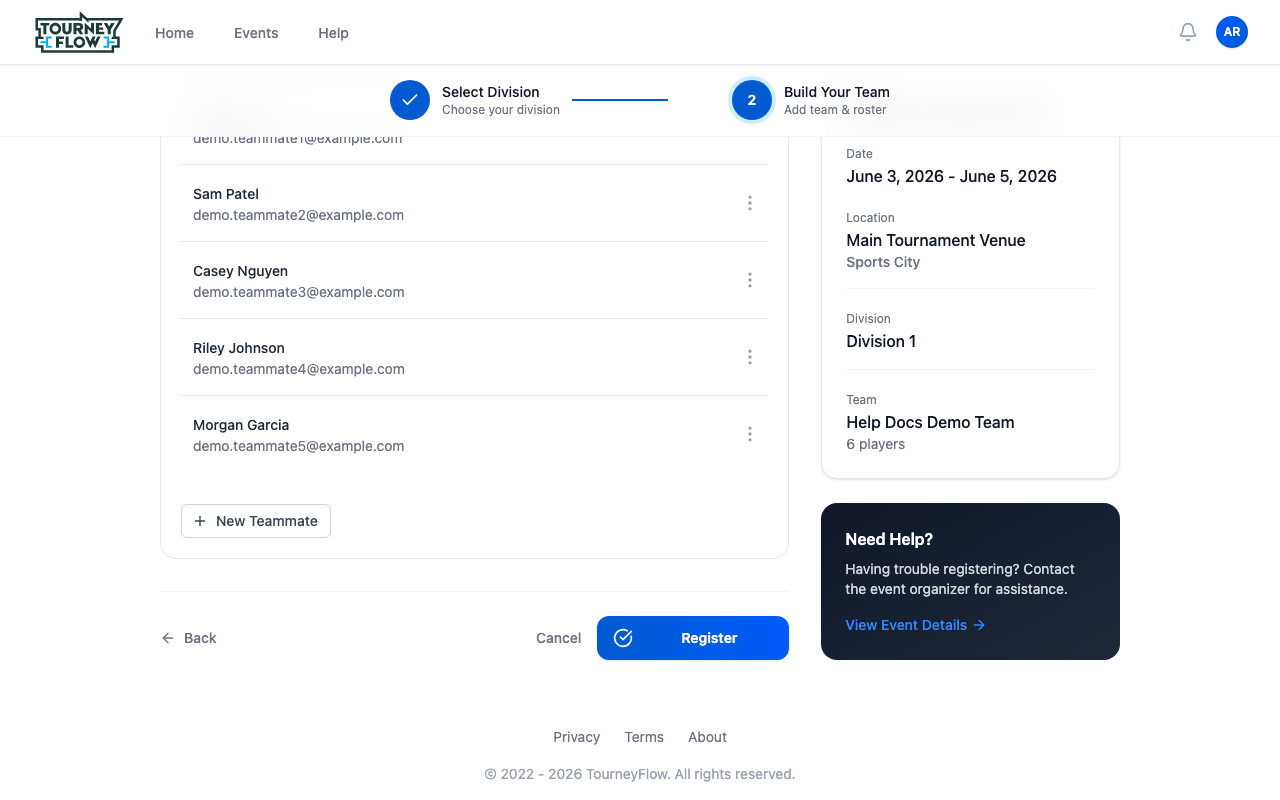
You'll land on the registration's detail page. If the division has a roster limit you exceeded, fees due, or required documents, those next steps will be called out here.
What's Next?
- Upload any required documents the organizer requires
- Change your division roster later if a player can't make it
- Check your active registrations from the account menu → Registers