How to Create a New Team
Learn how to create a team so you can register for divisions and compete in events.
Before You Begin
You need a TourneyFlow account. If you don't have one yet, sign up here.
Step 1: Go to Your Teams
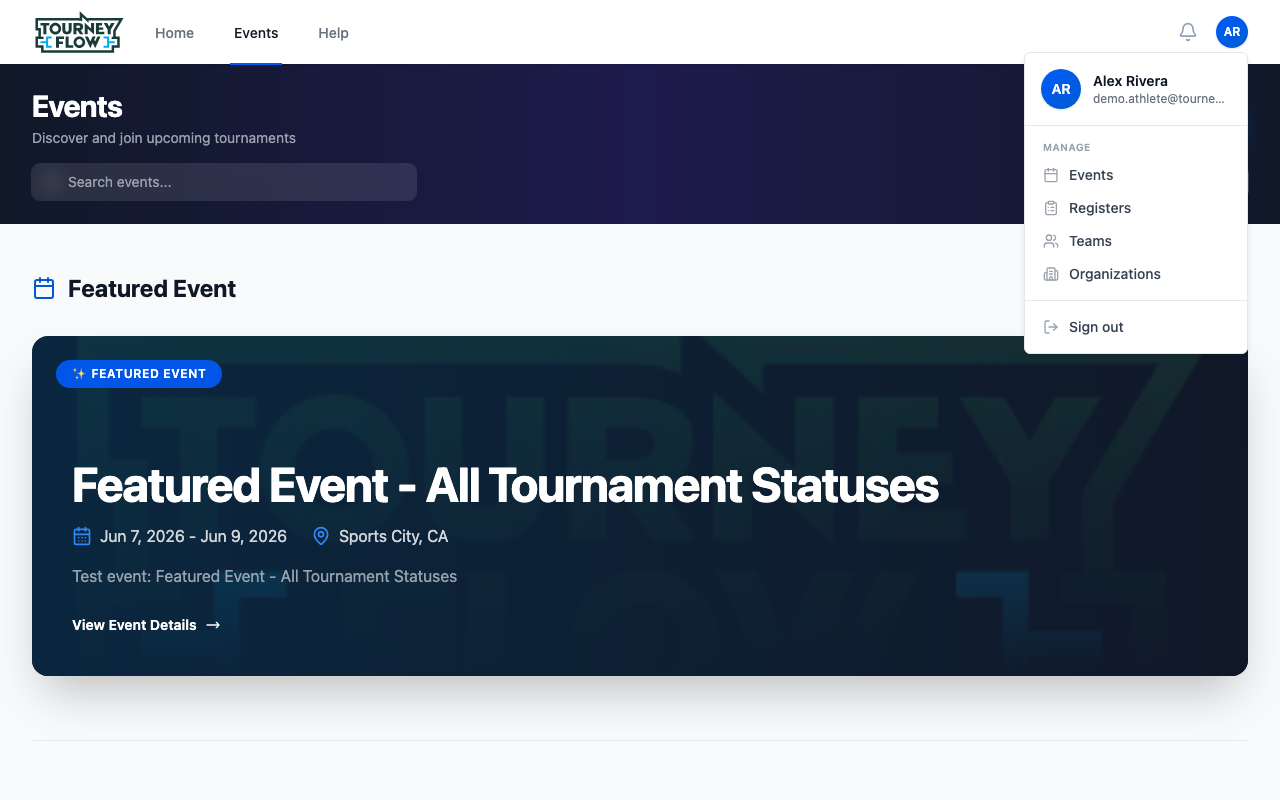
Click your profile avatar in the top‑right corner to open the account menu, then click Teams. (You can also go directly to Manage Teams.)
Step 2: Open the New Team Dialog
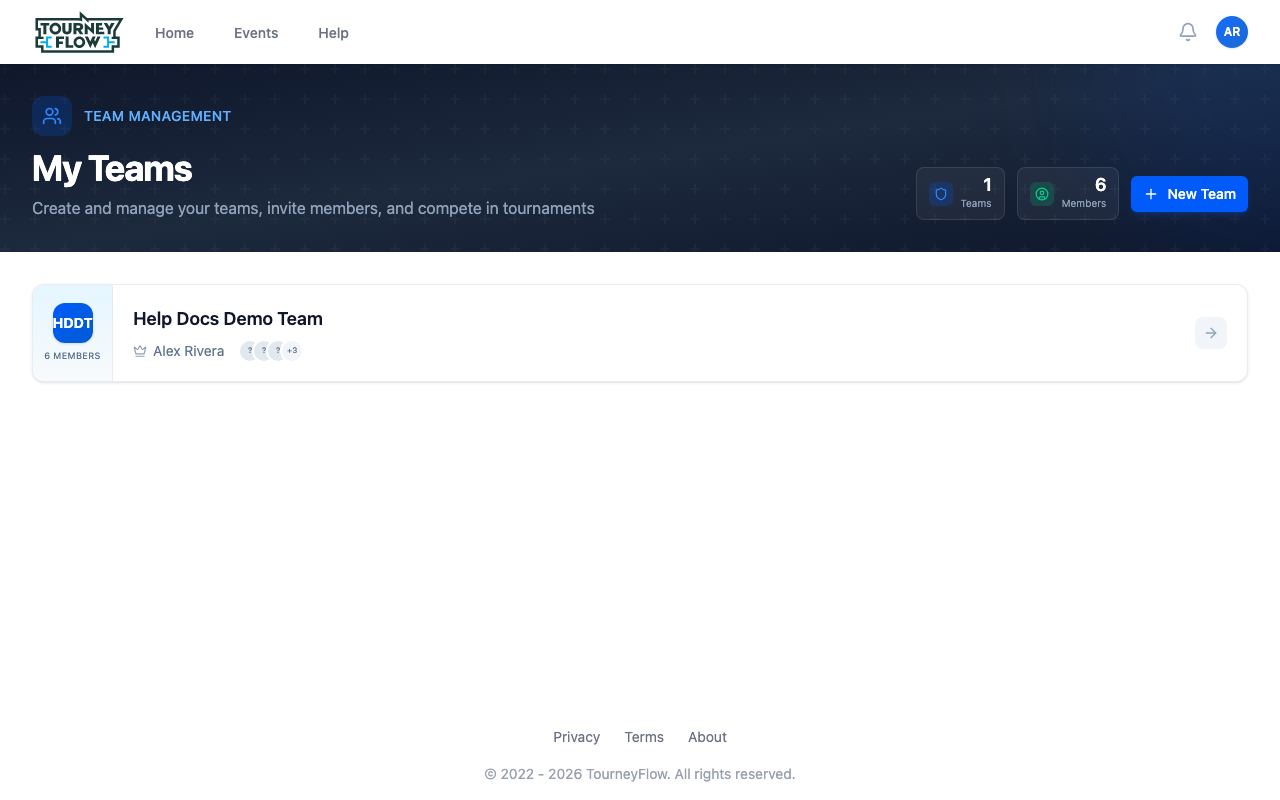
On the My Teams page, click the + New Team button in the top‑right corner. If you don't have any teams yet, you'll see a Create Your First Team button instead — click that.
Step 3: Fill in Team Details
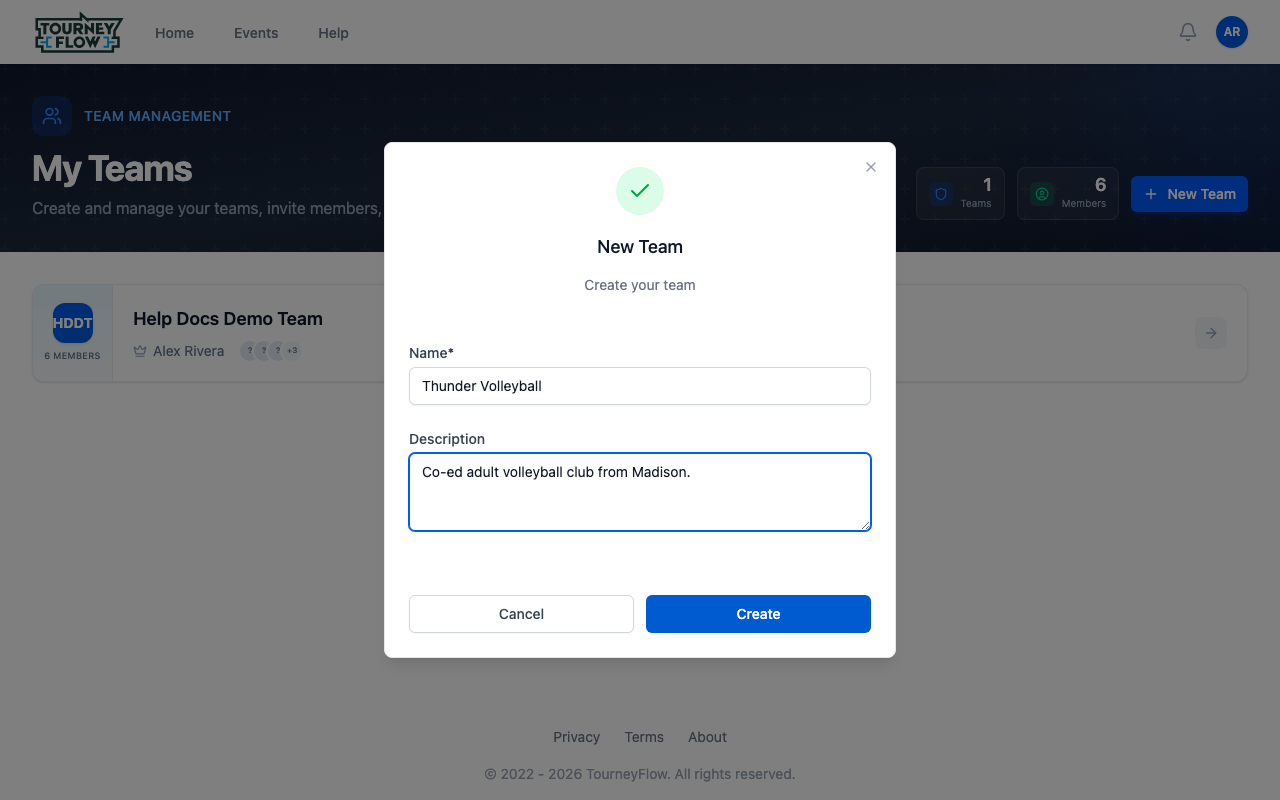
A New Team dialog opens. Fill in:
- Name (required) — Your team's name (e.g., "Thunder Volleyball")
- Description (optional) — A short blurb about your team
Tip
Choose a clear, recognizable name. This is what event organizers and other teams will see when you register.
Step 4: Create Your Team
Click Create. You'll land on your new team's page, ready to add members.