How to Manage Your Team Roster
Add or remove team members, promote members to captain, and manage your team's roster.
Before You Begin
You need to be a captain of a team. If you haven't created a team yet, create one first.
Note
Only captains see the Add Member button and the per‑member action menu. If you don't see those, ask an existing captain to promote you.
Step 1: Open Your Team
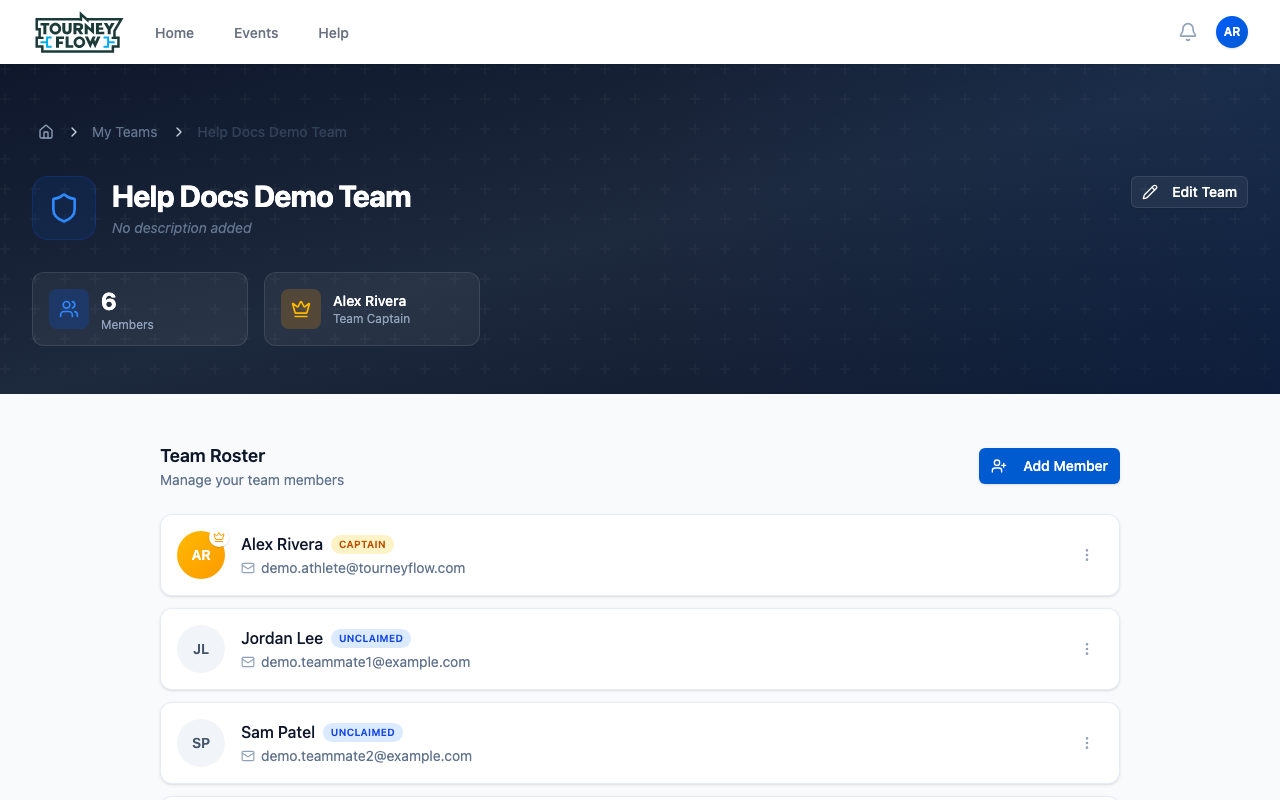
Open your account menu (avatar in the top‑right) → Teams, then click the team you want to manage. You'll land on the team page with your full roster.
Step 2: Add a Member
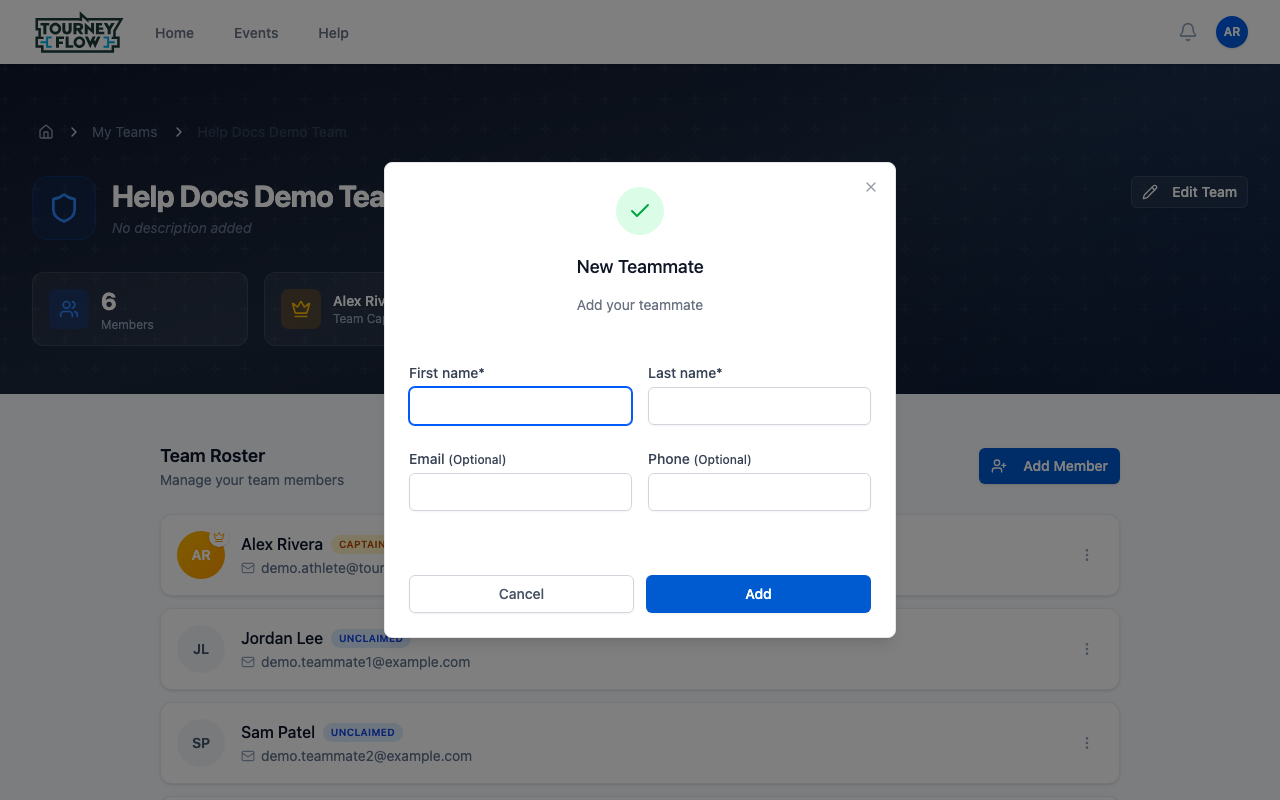
Click Add Member in the top‑right of the Team Roster section. A New Teammate dialog opens. Enter:
- First name (required)
- Last name (required)
- Email (optional) — lets them claim the profile and sign in
- Phone (optional)
Click Add. The person is added to your roster immediately. If you provided an email, they'll receive an invitation to claim the profile.
Tip
You can add a member without an email or phone — useful for kids or guests. Once you do add an email, they can claim the profile and you'll no longer be able to edit their personal details.
Step 3: Review the Roster
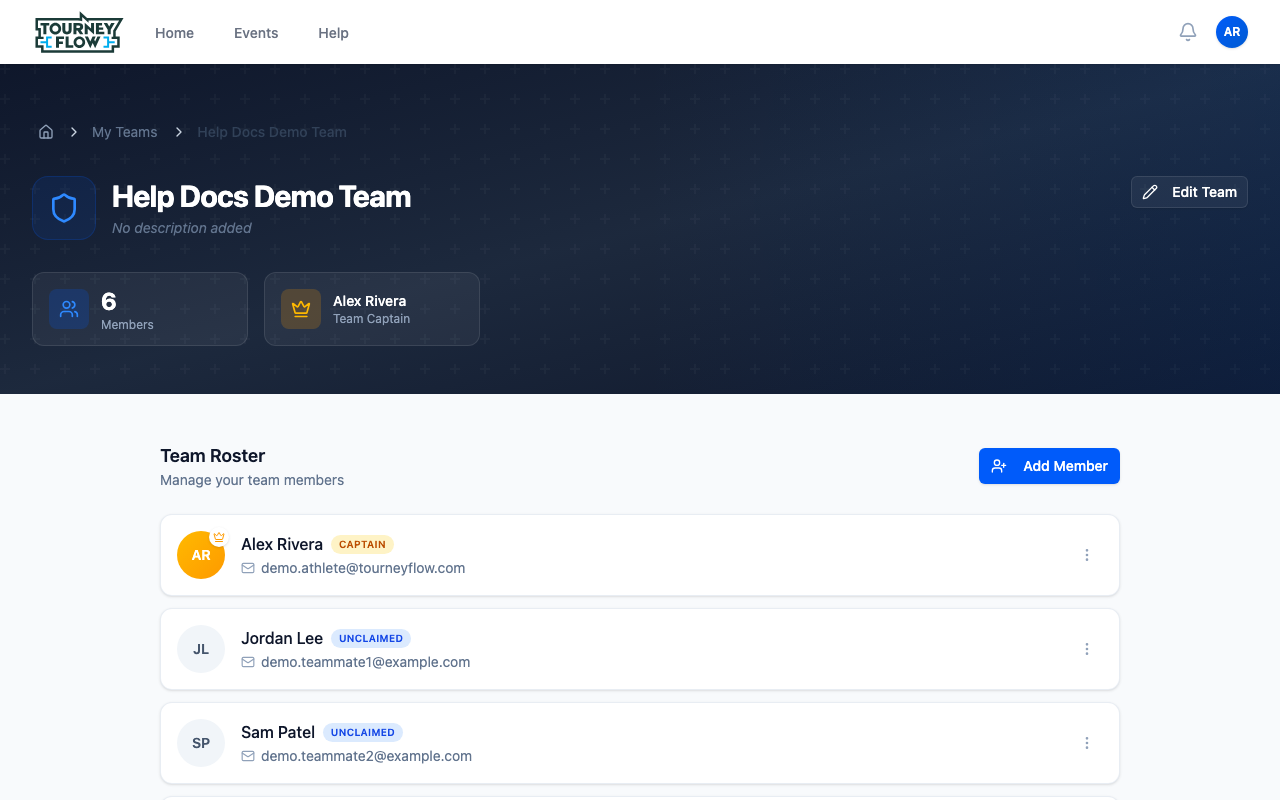
Each member appears on its own card with their avatar, name, contact, and a CAPTAIN badge if they're a captain. The number badge at the top‑left shows your total member count.
Step 4: Promote a Member or Remove Them
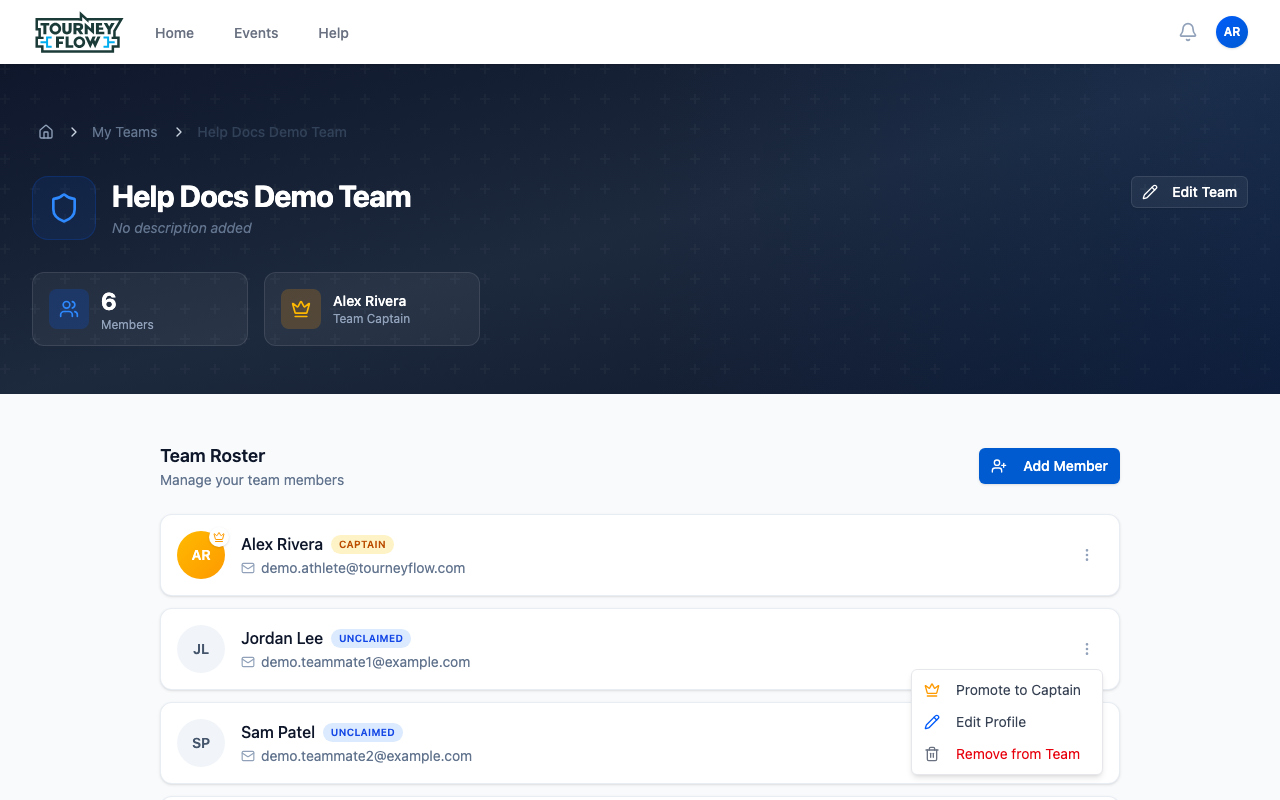
Hover over a member's row and click the ⋮ (more) button on the right. From the menu you can:
- Promote to Captain — gives them management permissions (add/remove members, manage registrations). Only shown for non‑captains.
- Demote to Player — removes captain status (only shown for captains, and only when at least one other captain remains).
- Edit Profile — only shown for unclaimed members; lets you fix their name, email, or phone before they claim the profile.
- Remove from Team — takes them off the roster.
Warning
Removing a member also drops them from any active division rosters tied to this team. Make sure that's what you want.
Tip
Keep at least two captains on every team so changes can still happen if one captain is unavailable.
What's Next?
- Register your team for a division
- Change your division roster for a specific event
- Upload required documents for an active registration